
Reinstall
Reinstalling replaces a disk with a fresh operating system or one of your templates.
From the Install tab
Section titled “From the Install tab”- Head over to the instance list and open your instance
- Select the “Install” tab
- Under “OS”, pick an image on the “OS Template” tab, or one of yours on “Custom Template”
- Hit “Install”
- Confirm
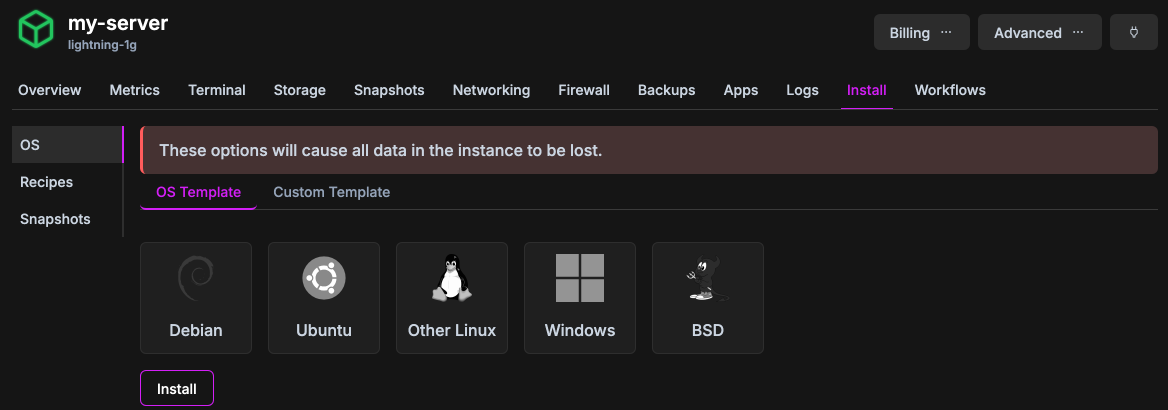
This always reinstalls the boot disk and starts the instance afterwards.
From the Advanced menu
Section titled “From the Advanced menu”- Head over to the instance list and open your instance
- Hit “Reinstall” in the “Advanced” menu
- Choose the disk to reinstall, or leave it empty for the boot disk
- Hit “Next”
- Choose a template
- Hit “Finish”
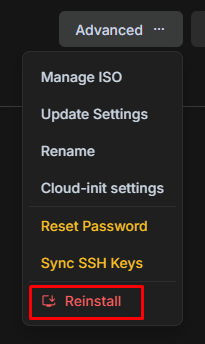
Use this to reinstall a disk other than the boot disk. The instance starts afterwards only if it was running before.
After a reinstall
Section titled “After a reinstall”- A running instance is forcefully stopped for the operation.
- IP addresses stay the same.
- The root password stays the same. To change it, open “Advanced” and hit “Reset Password” once the reinstall has completed.
- All of the workspace’s SSH keys are installed again. Read more in SSH Keys.
- SSH on your computer shows a host key warning on the next connection. Read more in Remote Host Identification Has Changed.
The “Snapshots” option on the Install tab rolls a disk back to a snapshot instead. Read more in Snapshots.